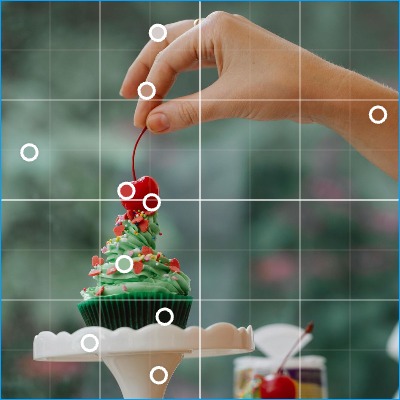
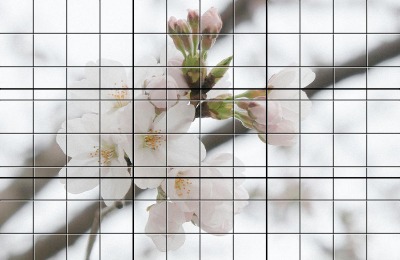
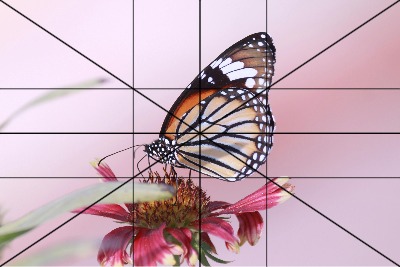
Add a grid to your reference photo
The grid method helps you draw accurately from a reference photo. Break the image into smaller, manageable sections; then, instead of guessing proportions, you just copy shapes square by square.
Here's how to use it effectively, and how the editor simplifies the process.
1. Match Your Real Canvas Size
Start by setting your actual canvas or paper size in centimeters.
For example:
- Your photo is 3000×5000 px
- Your canvas is 30×20 cm (landscape)
Set the canvas size to 30×20 cm. The image is automatically cropped to that exact proportion.
You can then:
- Move the frame to refine the composition
- Scale the frame up or down
- Crop out unwanted areas.
The grid will apply only inside this selected frame, so your reference matches your physical canvas precisely.
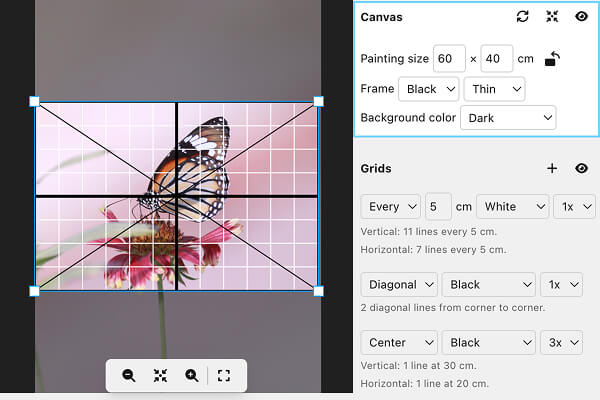 Adjust canvas size to the size of your canvas or paper
2. Add One or More Grids
There are several available grid types, among which:
- Diagonal cross
- Center
- Thirds
- Quarters
- Every N cm (custom spacing)
You can combine multiple grids at the same time.
For example:
- A black Thirds grid
- A slightly thicker Center grid
- A Diagonal cross for angle guidance
Each grid stays aligned to your defined canvas dimensions.
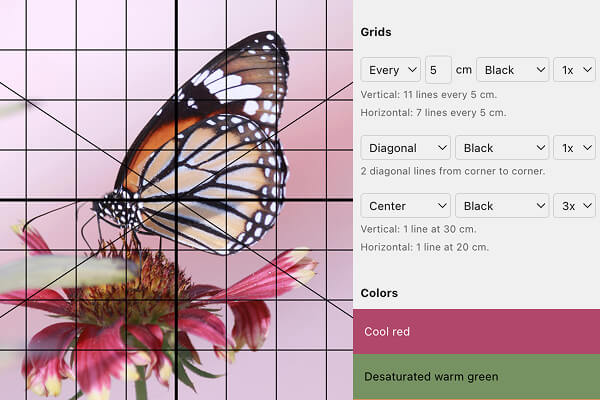 Several grids are applied to the image
3. Adjust Grid Visibility
Photos vary in brightness and contrast.
You can adjust:
- Grid color: black, white, or black & white
- Grid thickness (in visible pixels)
On a light image, use black lines. On a darker image, switch to white. Increase thickness if you're using multiple grids.
Grids can be toggled on and off instantly, which is useful when you want to check the image without overlays.
4. Use Real Measurements
The editor shows clear spacing instructions, such as:
- 2 vertical lines every 10 cm
- 2 horizontal lines every 6.6 cm
You can transfer these measurements directly to your canvas, without performing any calculations beforehand.
If you select Every N cm, enter your preferred spacing and the grid updates automatically.
5. Display or Print at Full Resolution
When you're ready:
- Display the image full screen beside your easel
- Or download it for printing.
Exports are generated at full resolution, which ensures sharp lines and accurate proportions.
Why This Saves Time
Without a dedicated tool, you would need to:
- Manually crop the image
- Calculate proportions
- Estimate grid spacing
- Redraw grids if composition changes
Here, proportions are exact, spacing is calculated automatically, and adjustments take seconds.
Less setup. More painting.
Upload a reference photo and start painting!
Try Paint From Photos and simplify your painting process right now!